*If you have forgotten your username and password, you can reset it using your registered email address at [inside.apc.org](https://inside.apc.org/user/password)*
To access Mattermost you can also use apps on your phone or desktop. Check available apps at [mattermost.com/download/#mattermostApps](https://mattermost.com/download/#mattermostApps) and use server name **mm.apc.org** and same credentials when logging in. You are all part of the '*convening'* team on the APC's Mattermost server. #### Channels [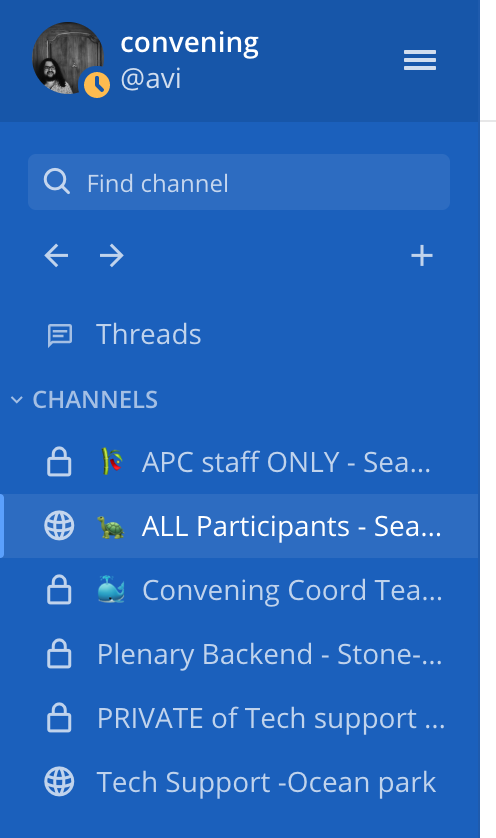](https://convening2021.apc.org/uploads/images/gallery/2021-11/image-1636713270996-04-25-pm.png) Once you login you will see channels (and direct messages) in a sidebar on the left. Use ***🐢 ALL Participants - Sea turtles*** to get updates on sessions and other announcements and to connect with everyone at the convening. Use ***Tech Support -Ocean* park** to ask for help from the tech team on any tech issues you might be having. Someone in the tech team is always monitoring the chat. #### Direct messages [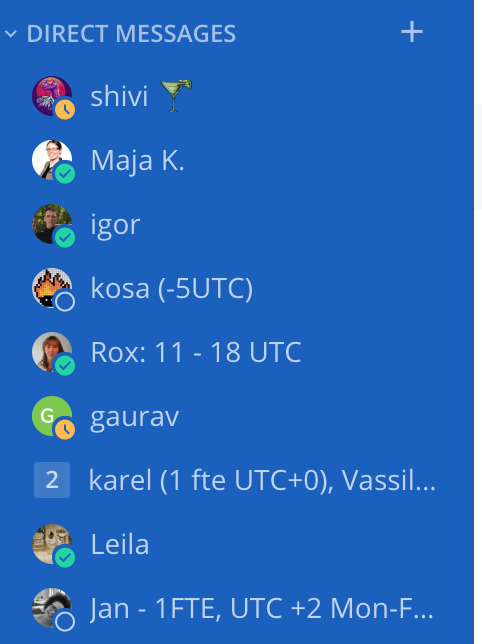](https://convening2021.apc.org/uploads/images/gallery/2021-11/image-1636713539942-08-57-pm.png) Below the channels, you will see your direct messages. You can send a direct message to any person in the convening team, every APC member, partner, and staff participating in the convening. You can send Direct messages to just one person or to multiple people at the same time. Click on the `**+**` sign to start a new conversation. [](https://convening2021.apc.org/uploads/images/gallery/2021-11/image-1636713699532-11-36-pm.png) Select people you would like to contact and click on **Go**. [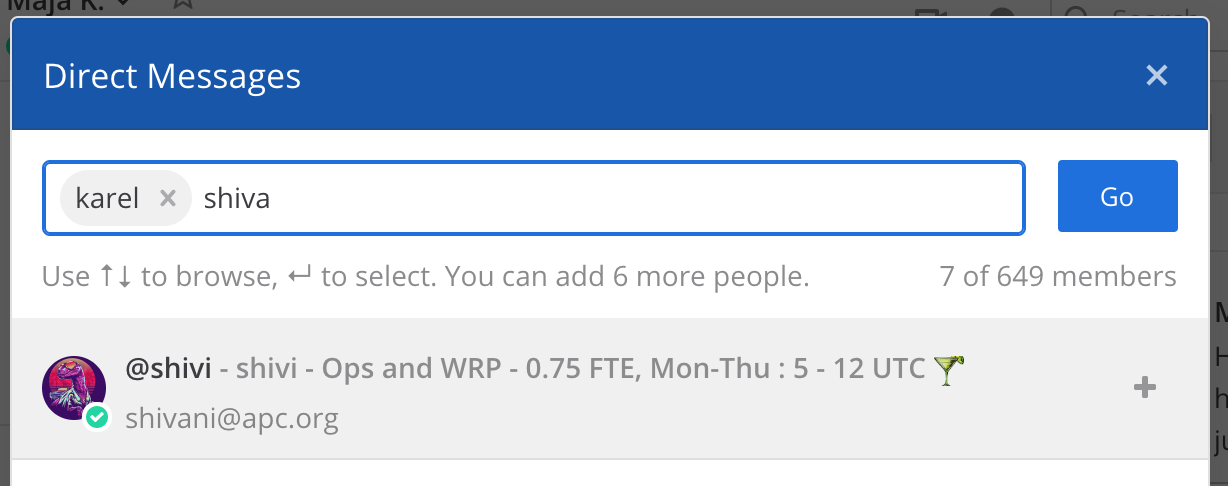](https://convening2021.apc.org/uploads/images/gallery/2021-11/image-1636713761838-12-39-pm.png) #### Initiate a BigBlueButton session When you would like to have an instant voice or video chat, you can initiate it directly from Mattermost.**Note:** This feature works only inside the browser (and not in apps).
In the direct message select the **BigBlueButton video camera icon** at the top of the window. [](https://convening2021.apc.org/uploads/images/gallery/2021-11/bbb-in-mm.png) Then select **Call \[username\]**. [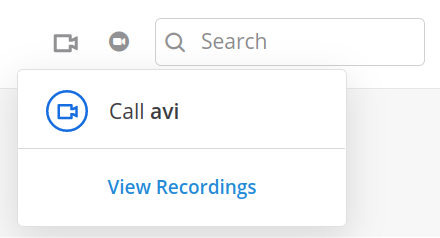](https://convening2021.apc.org/uploads/images/gallery/2021-11/call-avi.png) The information about BigBlueButton room will appear in the chat. Click on **Join Meeting** button and BigBlueButton session will be initiated. [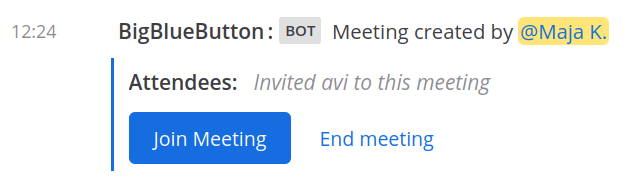](https://convening2021.apc.org/uploads/images/gallery/2021-11/bbb-join-meeting.png) When people join the session the message will display who joined [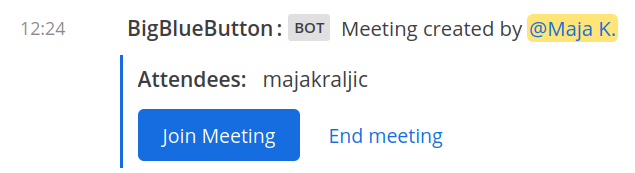](https://convening2021.apc.org/uploads/images/gallery/2021-11/attendees.png) #### Notify users about the message When you want to reference someone in a conversation use **@** followed by their **username**, ie **@shivi**. That person will receive a notification and be informed about the conversation they are a part of. This feature is useful in cases when you have direct messages with multiple people but you want a certain person to be notified about the conversation. **@all** and **@channel** notifies everybody in the channel #### Setup notifications If you would like to be notified about new messages, you can set up your notification preferences (with or without notification sounds). Click on three lines next to your name and select Account Settings. [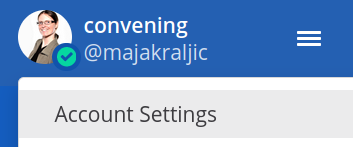](https://convening2021.apc.org/uploads/images/gallery/2021-11/account-settings.png) Then go to **Notifications tab** and Edit your Desktop, Email and Mobile Push Notifications. [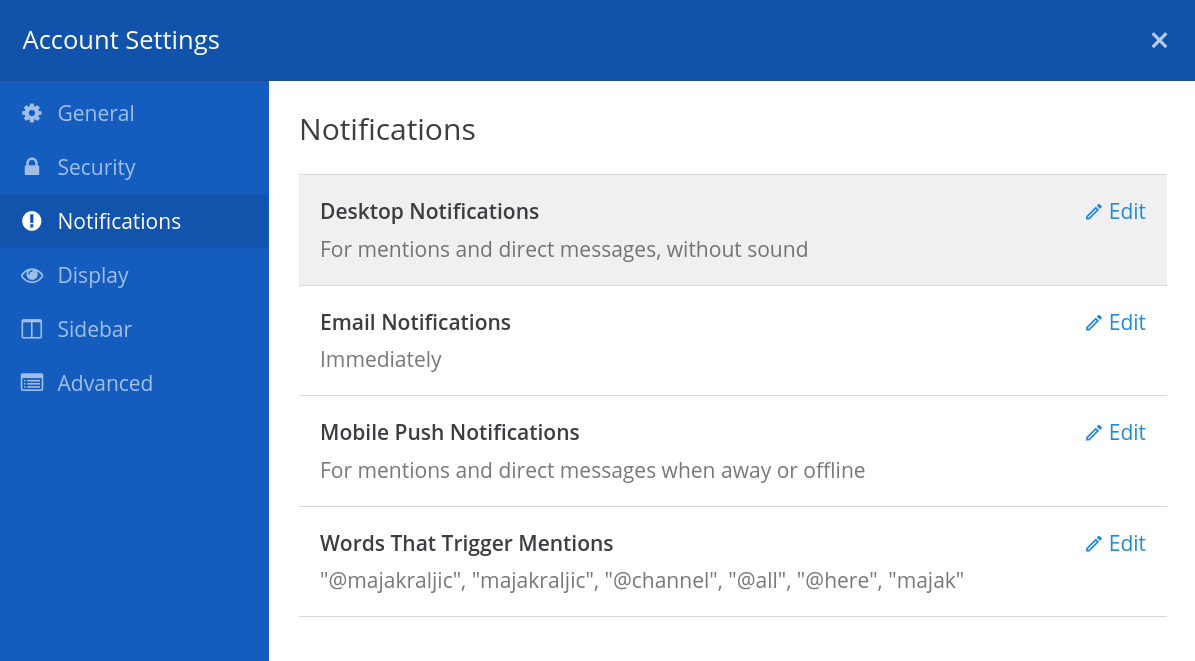](https://convening2021.apc.org/uploads/images/gallery/2021-11/account-settings-notifications.png) #### Send a file You can send a file by clicking on the **clip icon** , selecting the file and adding an optional message. [](https://convening2021.apc.org/uploads/images/gallery/2021-11/send-a-file.png) [](https://convening2021.apc.org/uploads/images/gallery/2021-11/sea-turtles.png)